
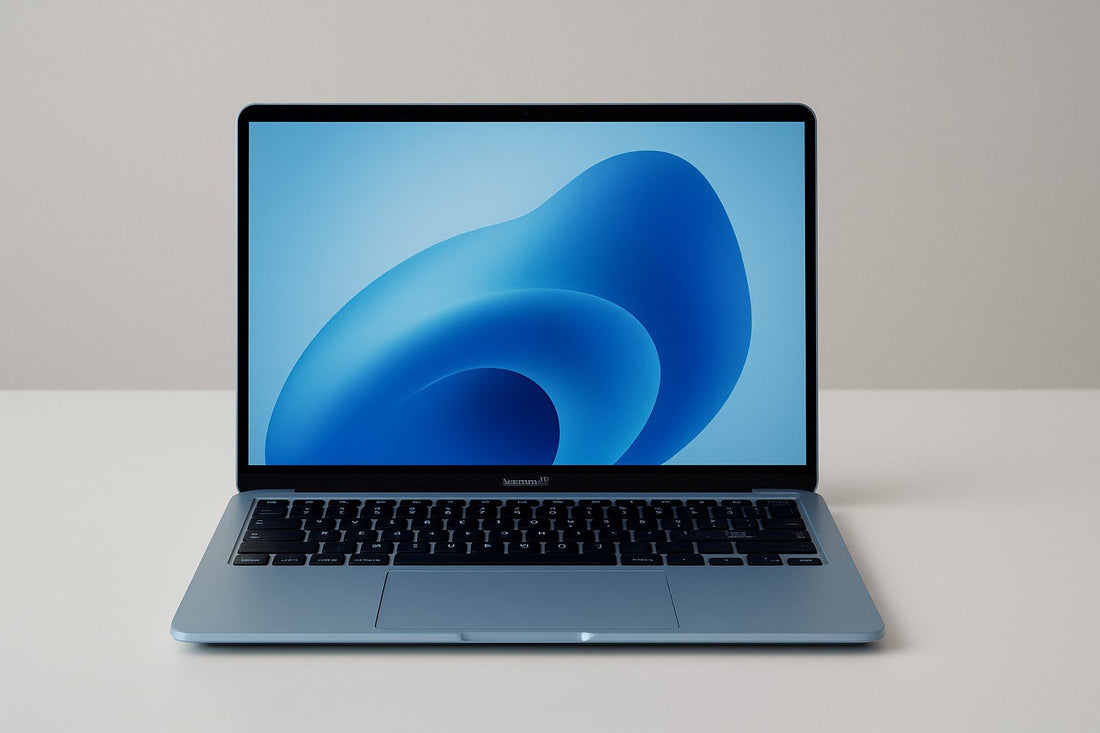
How to Restore MacBook Air to Factory Settings
Over time, your MacBook Air may slow down, or you may want to sell it while ensuring your data is secure. Restoring your MacBook Air to factory settings will erase all content and settings. Before proceeding, make sure to back up important data, as it cannot be recovered after the reset.
1. Requirements for Factory Reset
macOS Version: Your Mac must be running macOS Monterey, macOS Ventura, or later to use the “Erase All Content and Settings” feature.

Hardware Requirement: Your Mac must have an Apple T2 Security Chip or an Apple M-series processor.
Common Macs with T2 Chip:
MacBook Air: 2018–2020 (13-inch Retina)
MacBook Pro: 2018–2020 models
iMac / iMac Pro: some models
Mac mini: 2018 model
Mac Pro: some 2019 models
How to Check if Your Mac Has an Apple M-series Chip:
Click the Apple menu → About This Mac
Check the “Chip” field. If it contains Apple, your Mac has an M-series chip.
Note: Intel Macs cannot use the “Erase All Content and Settings” feature. They can only reset via Recovery Mode.
2. Preparation Before Factory Reset
Backup Data
Use Time Machine or other backup methods to save important files to an external drive or cloud storage.
Sign Out of Apple ID and Other Accounts
Sign out of iCloud: Apple menu → System Settings → Apple ID → Sign Out
Sign out of App Store / Media & Purchases: System Settings → Apple ID → Media & Purchases → Sign Out
Unpair Apple Watch (if applicable)
Unpair it using the Watch app on your iPhone.
Remember Your Apple ID Password, as it may be required after erasing the Mac.
3. Methods to Restore MacBook Air to Factory Settings
Method 1: Use “Erase All Content and Settings” (T2 / M-series + macOS Monterey/Ventura)
1.Click the Apple menu → System Settings
2.Select General in the sidebar → click Transfer or Reset on the right
3.Click Erase All Content and Settings
4.Log in with your administrator password to confirm
5.Follow prompts to delete settings, media, and data
Wait for the system to complete the erasure and restore factory settingsNote: This method keeps macOS installed, so you don’t need to reinstall the operating system.
Method 2: Restore via Recovery Mode (All Macs)
1.Click the Apple menu → Shut Down
2.Press the power button to turn on the Mac while holding Command + R until the Apple logo appears
3.In the macOS Utilities window → select Disk Utility → click Continue
4.Select your startup disk (usually “Macintosh HD”) → click Erase
5.Name the disk and choose a format:
APFS (recommended for macOS 10.13 and later)
Mac OS Extended (Journaled) (for older Macs)
6.After erasing, close Disk Utility → return to the Utilities window
7.Select Reinstall macOS → follow the on-screen instructions
8.Once installation is complete, if you don’t plan to use the Mac immediately, you can simply shut it down
Note: Recovery Mode can be used on all Macs to erase data, but it is more complex than Method 1.
4. Data Recovery Tips
After using “Erase All Content and Settings” or erasing the disk via Recovery Mode, data is almost impossible to recover.
Always back up important files using Time Machine or other methods before resetting.
Lost data may be unrecoverable even with professional recovery tools.
5. Summary
1.For system cleanup or speed improvement: You can back up files and selectively erase some content.
2.For selling or transferring your Mac: Always back up first, then use Method 1 or Method 2.
3.Applicability:
Method 1: T2 / M-series + macOS Monterey / Ventura
Method 2: All Macs
Restored your MacBook Air? Don’t forget reliable power matters too. Find trusted replacement batteries and chargers at AppleBattery.com!